
I’ve been a long-time 1Password user. When Apple Passwords arrived a year ago I was excited to think that there would be a password manager built-in to OSX, so I jumped across. I imported all my 1Password passwords and jumped right in. It’s been a disaster. Apple Passwords does not have all the functionality of Password, it’s slightly more clunky, and if you turn 1Password back on, you can’t get access to the 1Password dialog box because in many cases the Apple Password overrides it. I’ve persevered with Apple Passwords for a year and now I’m changing back.
Here’s how to get rid of Apple Passwords if you’ve made the same mistake as me! Turn 1Password back on. Turn off the Apple password manager. Remove Apple password extensions and turn on 1Password extensions, There’s one more step! Turn off the autofill of passwords from Safari.
- Turn off 1Password in the system settings.

2. Enable 1Password in Safari Extensions

3. Turn on 1Password and delete the Apple Password extensions from Chrome.

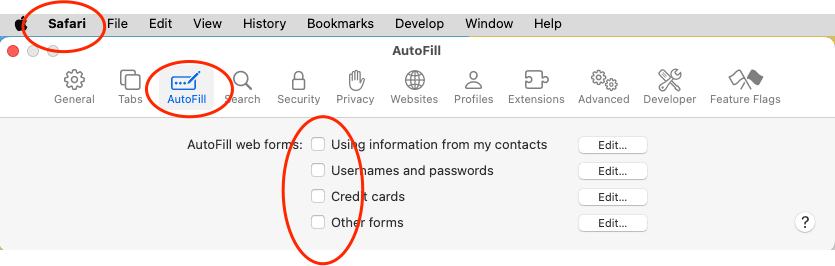
4. Turn off all the autofill settings in Safari.
UPDATE: IF you have already set up passkeys in Apple passwords, there’s an extra step you need to do. You cannot enter a new passkey for your password manager from OSX if there is already an Apple Passkey setup. OSX will not let you do it. You need to log in to your Google account and delete the Apple passkey directly from Google. Read how to do this here.


Leave a Reply