
If you are using a third-party password manager, for example 1password, bitwarden, Macpass etc, you may get this annoying dialogue box every time you try to log into Google:

This only occurs when you have a passkey already set up in the Apple keychain. I’ve written an article about passkeys here, they are great. But you can get stuck if you already have set up a passkey in Apple Passwords. I’ve written an article on how to turn off Apple passwords here, but if you’ve already set up a passkey in passwords, you’ll need an extra step.
The problem is that if you have a pass key set up in Apple keychain there is no way to create a new passkey for your password manager. All you can do is ‘Cancel’ the dialog box and log in with a password.
The way to fix this is to log into your Google account (at google.com) and delete your iChain pass key. You cannot do it from macOS X.
Step 1, log into your Google account using your password.
Step 2, go to the security tab.

Step . Find your iCloud passkey (this is the passkey that OSC sets up) and delete it.

That’s it! Now the next time you log-in to Google from OSX, you will be prompted to create a new passkey, and you can create a new passkey using your third-party password manager
The next time you log in, you should say something like this:
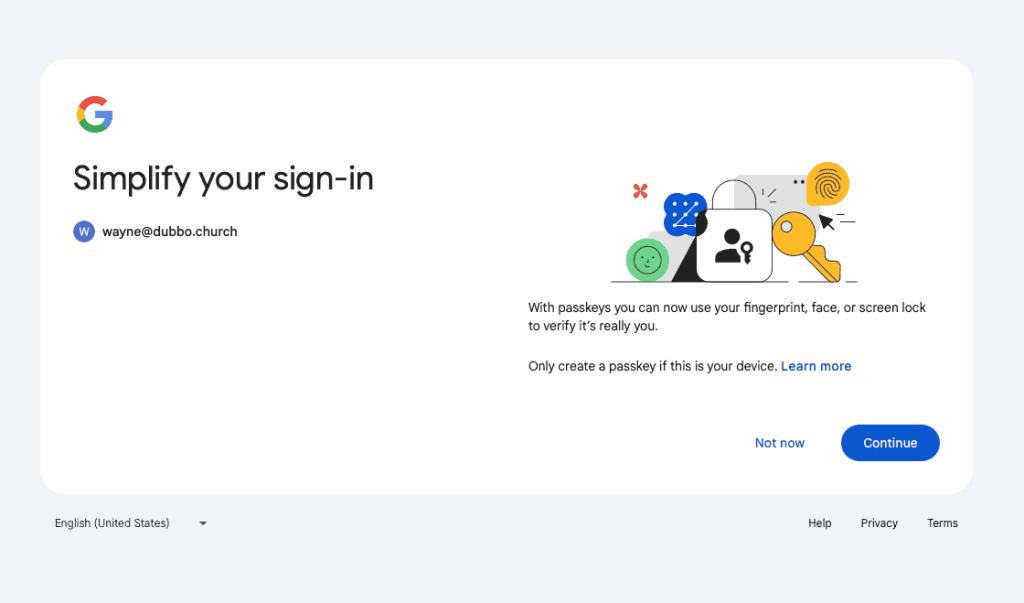
You can click ‘Continue’ to create a new passkey that uses 1Password instead of Apple Passwords.


Leave a Reply