
In this article, I explain how to use Apple Calendar to ensure your week aligns with your values and convictions.
One of the things I found it hard to do was to link to a document from the calendar. When I use appointments to remind me of my values and strategic plans, I want to be able to link to those documents from within the calendar. Apple Calendar doesn’t support this feature natively. The key is to create an alias of the file and then drag the alias into the calendar.
I want to add a link to a Pages document, so that I can easily open the Pages document from the Calendar.
Here in the calendar there a place to add a URL or an attachment.
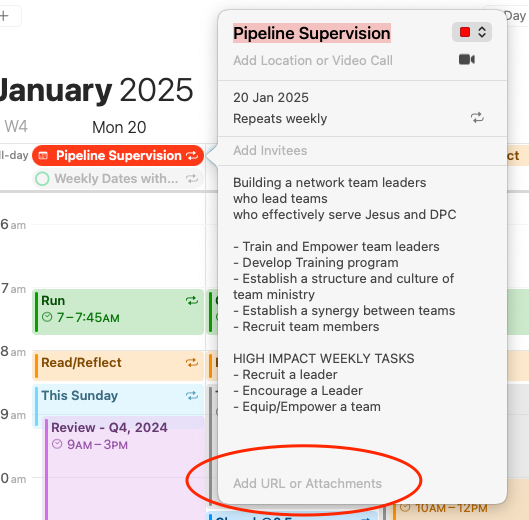
Here’s the problem. If you drag the document into the attachment section, it copies the document into the calendar. (Not what you want!)
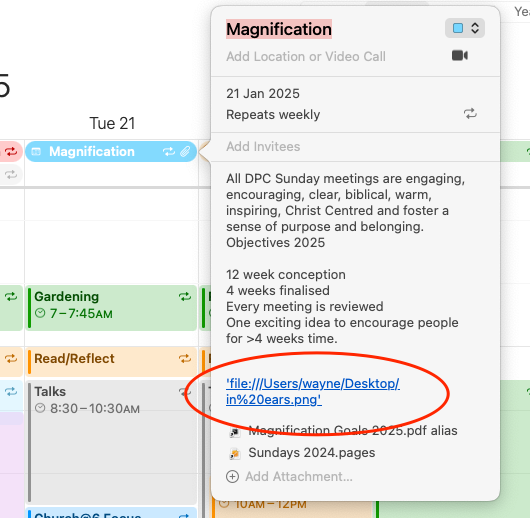
If you select the pathway to the file (control – option click then ‘select file path) and paste it into the URL, OSX tries to open the file in your web browser!!!! It will not open it from your computer.
In this example below I pasted in the URL to a local file, (If you select the pathway to the file (control – option click then ‘select file path) and paste it into the URL,) but when you click it does not recognise it as a local file – it opens Safari!!!!
The solution is to create an alias of the file, and then drag the alias into the calendar.
So step one, right click on the Pages document (or whatever document that you want to link to) and select ‘Make Alias’. This makes a new fuel that is a link to your document. Drag this Alias into the calendar!!!
It will now look something like this:
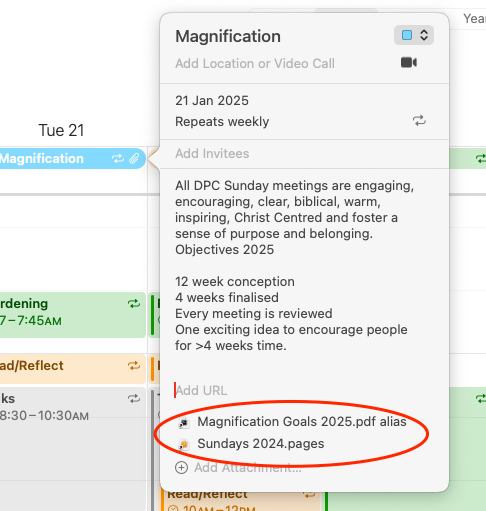
You can click on these files and they will open up!


Leave a Reply